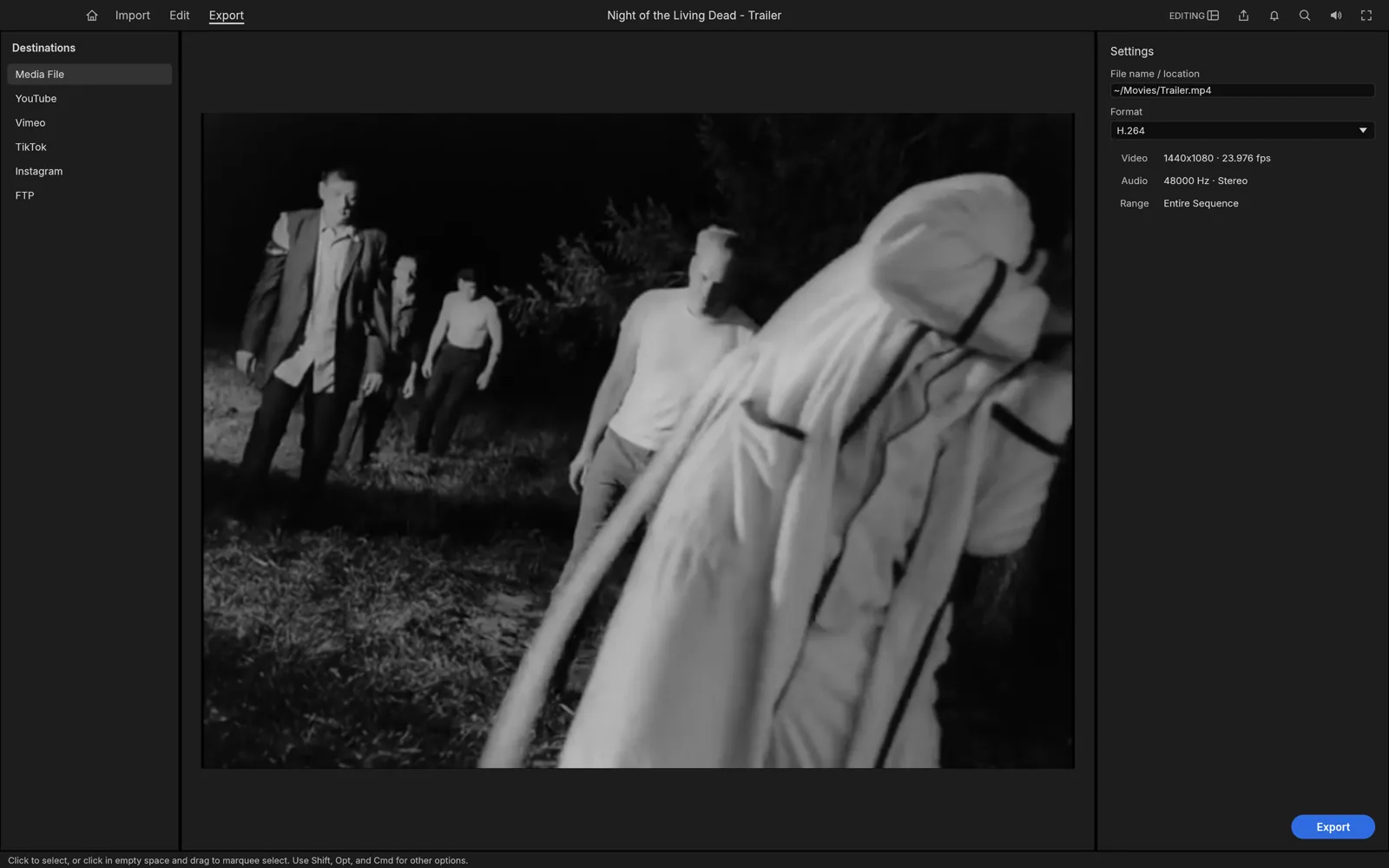
FilmCraft Export Settings: H.264, ProRes, Bitrate and Frame Rate
Choose an export format for delivery or further editing, preserve the sequence frame rate, and diagnose compression and scaling problems with a sample export.
Filmcraft · Updated
Loading guide…
A useful export starts with the destination: a file for someone to watch, a master for another editor, or an upload with specific delivery requirements. These are different jobs. Saving the FilmCraft project preserves edit decisions; exporting renders a separate media file. Keep both when you may need revisions.
The controls discussed here are documented in the v0.20.1 desktop exporter. Encoder availability can depend on your system and build. If you are working in a browser, first read the browser save and export guide, since desktop capabilities should not be assumed there.
1. Define what you are delivering
Write down the required frame size, frame rate, audio layout, and whether captions must remain selectable. Decide whether to export the complete sequence or a marked range. Before opening Export, check that an old In/Out range is not excluding the beginning or end of the piece.
Choose an output filename and folder that cannot overwrite your source media. A name describing the sequence, revision, and destination is more useful than a generic “final” filename. Leave the project file beside your working notes, not inside a folder you routinely clear after uploading.
Choose H.264 for delivery or ProRes for a handoff
Choice
Useful starting purpose
Tradeoff to inspect
H.264
A broadly playable delivery file, commonly in MP4
Fine texture and rapid motion can show compression when the bitrate is
too low.
ProRes
A high-quality intermediate for further editing or a master workflow
Files are generally larger; confirm the receiving application accepts
the selected profile.
ProRes Proxy
A lightweight editing copy
Do not mistake a proxy profile for the preferred finishing master.
For H.264, start with the destination's current specification or a relevant preset, then inspect a representative section. FilmCraft exposes bitrate controls for supported modes. A target bitrate describes the intended data budget; increasing it can preserve more detail but cannot recover detail absent from the source. Constant bitrate aims for a steadier budget, while variable bitrate allows more variation with content. A quality-based mode is a different control and should not be treated as a fixed file-size promise.
For ProRes, choose the profile for the handoff rather than applying H.264 bitrate advice. FilmCraft lists Proxy, LT, 422, HQ, and 4444 variants. Selecting a heavier profile does not turn a low-quality source into higher-quality footage. Ask the recipient which profile and container their workflow expects.
Review the destination, format, and export range together before starting a
render.
Keep dimensions and motion consistent
Match the export frame rate to the sequence unless the delivery specification requires conversion. Changing the number at export is not a way to create motion that was never recorded; conversion may repeat, drop, or interpolate frames depending on the processing path. Review pans, cuts, and scrolling text after any conversion.
Keep the intended aspect ratio. For a portrait sequence, use the vertical video workflow to reframe the edit before export. Scaling a landscape export into a portrait box afterward can add bars or cut off the subject. Also confirm audio is enabled and that the channel layout matches the destination.
4. Inspect an actual exported sample
Export a section containing difficult movement, dark gradients, speech, and a title. Open the result outside FilmCraft. Look for blockiness, banding, clipped text, missing audio, and a changed aspect ratio. If compression is the problem, change the relevant quality or bitrate setting and compare the same material. If the framing is wrong, fix sequence or export dimensions instead.
Finally export the intended full range and check its beginning and end. A successful render notification does not confirm that you selected the correct sequence or caption output. See the subtitle delivery guide before sending a captioned version.