FilmCraft Subtitles: Import SRT, Export Captions and Burn In Text
Import and correct an SRT caption track, export a separate subtitle file, and choose deliberately between selectable captions and text burned into the picture.
Filmcraft · Updated
Loading guide…
A video with visible text and a video with selectable subtitles are different deliverables. Before editing captions in FilmCraft, find out whether the destination expects a separate SRT file, permanently visible captions, or a supported embedded subtitle stream. Choosing this early prevents duplicated subtitles and unnecessary re-exports.
This guide follows the v0.20.1 caption documentation. It describes an existing subtitle file and manual caption corrections; it does not assume that importing a video automatically produces a transcript.
1. Separate the three delivery types
Delivery
What the viewer receives
What to verify
SRT sidecar
A text file containing cue timing and text, delivered alongside the
video
The player or upload platform must load and associate the subtitle file.
Burned-in captions
Text rendered into the video pixels
The viewer cannot turn it off; position, spelling, and size must be
correct before export.
Embedded selectable subtitles
A subtitle stream inside a supported media container
Container, exporter, player, and subtitle-format support must all agree.
Importing SRT does not by itself promise an embedded selectable stream in the exported MP4. The documented FilmCraft workflow provides separate caption export and a video burn-in control. If a client specifically requests embedded subtitles, confirm the supported container workflow rather than relabeling a sidecar file as embedded.
Import SRT into the intended sequence
Open the sequence that matches the subtitle timing, then choose File → Import and select the .srt file. Dropping a recognized caption file is another documented import path. FilmCraft creates a caption track and snaps cue timing to sequence frames.
Open Text → Captions in the Text panel to inspect the imported segments. Check the first spoken line and a later line against the audio. A constant offset suggests a different start point; increasing drift suggests that the file was timed against a different edit or time base. Do not fix every cue manually until you know which problem you have.
Correct text and In/Out times, then play through the transitions between captions. Look for cues covering the wrong speaker, text that disappears mid-sentence, and collisions with titles. Use the track style controls for the on-screen appearance, but remember that an SRT sidecar does not preserve the complete appearance of a styled caption track in every player.
Export and test a separate subtitle file
Choose File → Export → Captions…, or Export captions… in the Text panel. Select SRT as the format and choose the correct caption track if the sequence contains multiple languages or versions. Give the file a name that clearly matches the corresponding video revision.
Open the exported SRT in a text editor to confirm the expected language, text, and timecodes. Then load it alongside the exported video in a player that supports sidecar captions. Check several points rather than only the opening cue. If you later trim the sequence, export a new matching subtitle file; an earlier SRT does not automatically follow changes made after its export.
Video export and caption-file export are separate delivery steps. Review the
caption setting for the version you are creating.
4. Make a burned-in version deliberately
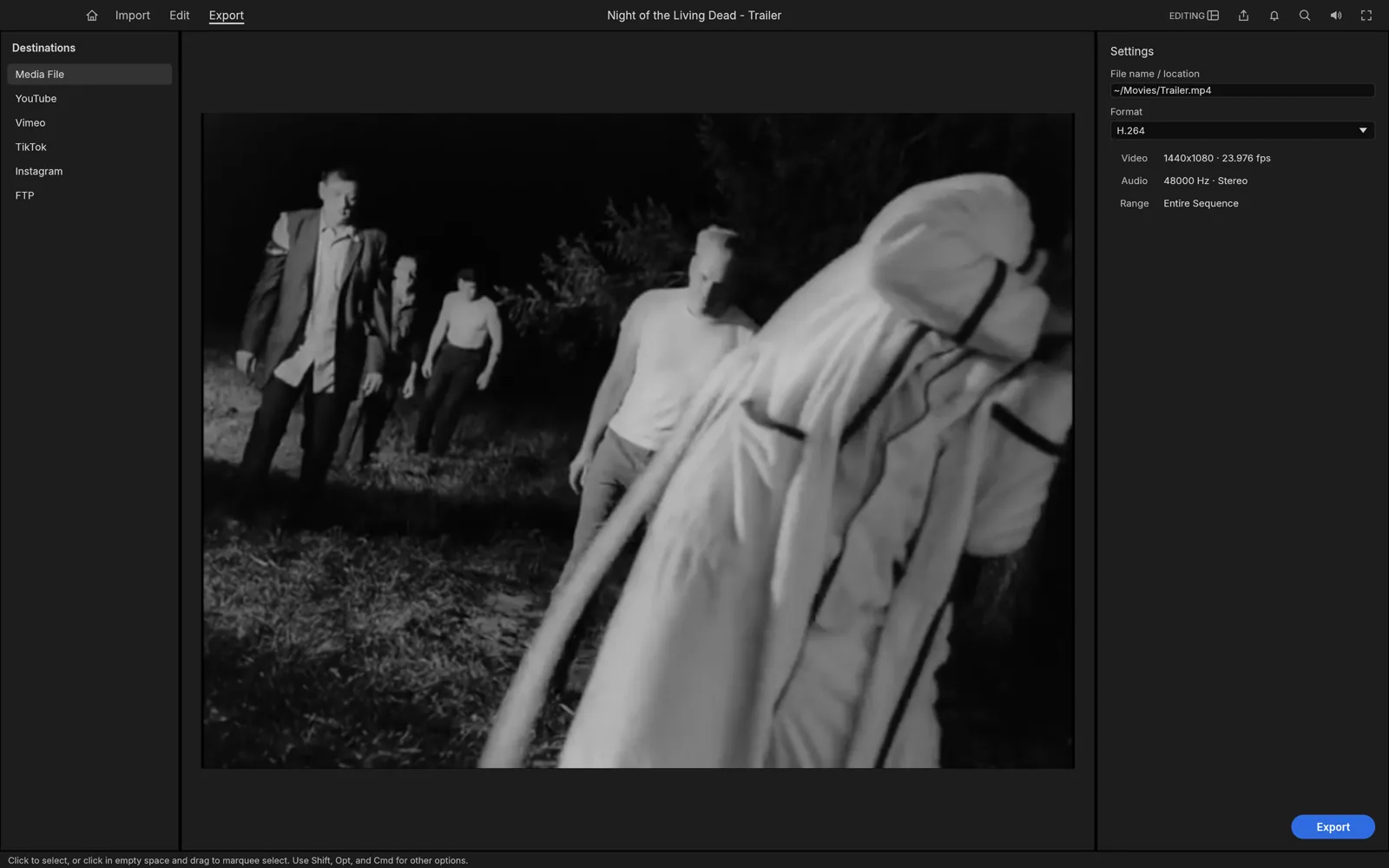
Enable the intended caption track's output eye, review it in the Program monitor, and use Burn Captions Into Video in Export mode for a permanently captioned version. For a clean video plus SRT, disable burn-in and verify the result. Also inspect nested sequences: the documentation notes that captions inside a nest become part of that nest's picture, which the outer burn-in switch does not remove.
Check a sample at the actual delivery dimensions, especially for vertical video. Confirm text does not sit under interface overlays or outside the frame. Play the final video without loading the SRT to verify whether text is truly burned in, then test the sidecar separately if both versions are being delivered.