FilmCraft Online: How to Edit, Save and Export in a Browser
Try a small FilmCraft online project, understand browser storage, and keep both an editable project and a playable export before closing the tab.
Filmcraft · Updated
Loading guide…
FilmCraft online means running the editor's WebAssembly build in a browser. Before investing time in a real project, make a tiny edit and prove that you can save it, export it and find both files on your computer. That trial is more useful than assuming every desktop workflow will behave identically in a tab.
Open our Use Online page and check the options shown there. If a hosted editor is configured, use its launch link. If the page offers only a web-build download, you need to serve that build locally or use the desktop app. A guide page is not itself the editing application.
Use a current browser, a stable connection for the initial app load, and enough free disk space for downloads. After opening the editor, wait for the workspace to finish loading before adding footage. Keep the first test small so the cost of a failed attempt is low.
According to the official web-build documentation, the standard build processes media locally and maps file operations to browser APIs. That describes the upstream build; any third-party host can have its own surrounding pages and services. Check the address you are using, particularly before choosing private footage.
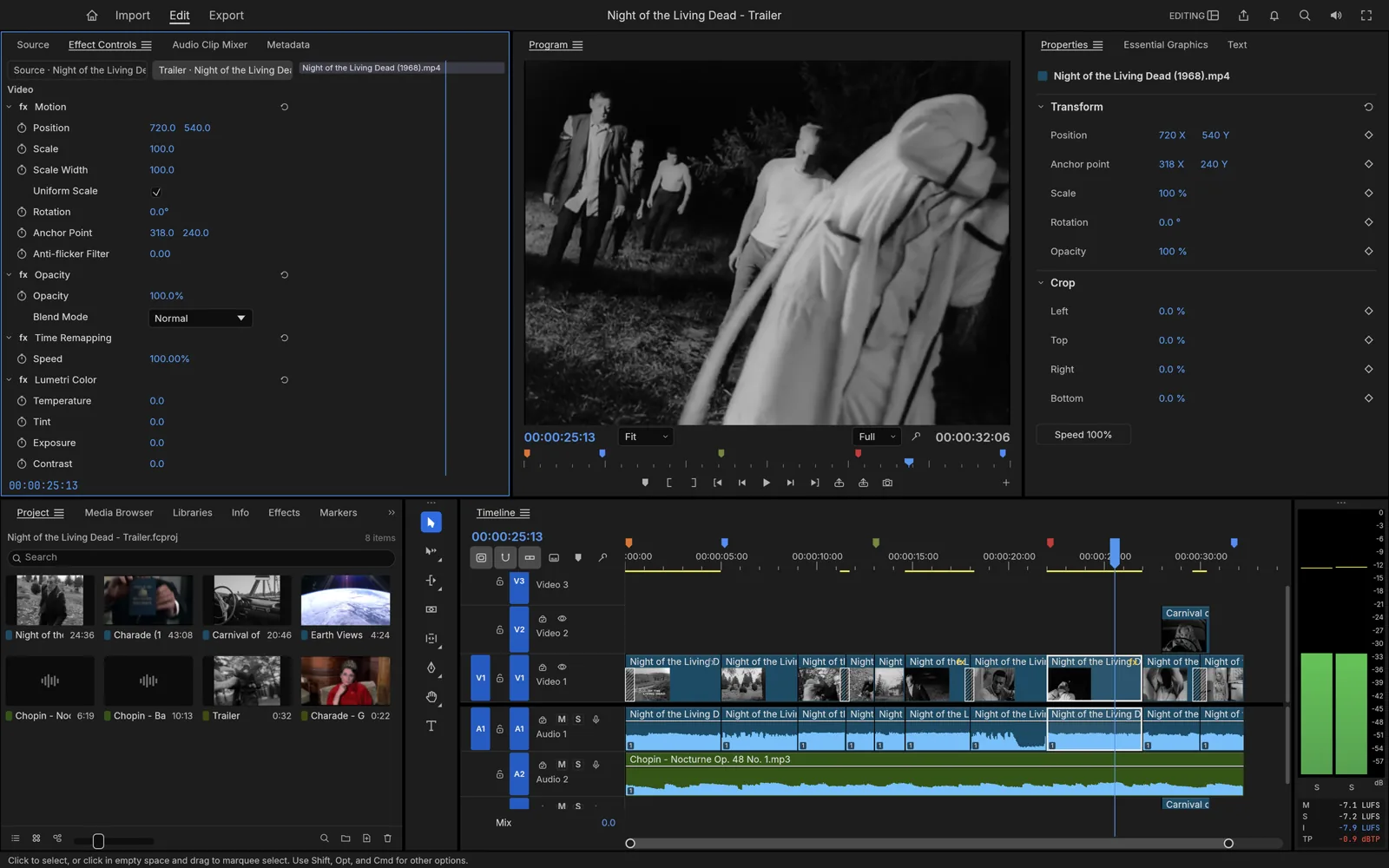
Workspace reference from the desktop demonstration. The web build uses the
same editor UI, while file access, recovery and performance follow browser
rules.
2. Run a small editing trial
Prepare one short clip and give the experiment a clear purpose: trim the beginning and export a few seconds. Avoid importing an entire camera card on your first visit. You want to learn how this browser, this build and this media format work together.
Import a short local clip through the editor's file chooser or supported drag-and-drop workflow.
Create a sequence from the clip and play it before editing. Check that both picture and sound work.
Remove an unneeded opening section and replay the beginning.
Add a short title only after the basic cut behaves as expected.
Save an editable project and make a short export before attempting a longer sequence.
Click inside the application before testing playback audio. Browsers can require a user interaction before starting sound, as explained in FilmCraft's web audio notes. If playback is silent, also check tab mute, system output and the sequence's audio track; do not immediately conclude that import failed.
For a fuller editing exercise, use the 30-second FilmCraft tutorial. The same storytelling checks apply whether the editor runs in a browser or a desktop window.
3. Understand save, recovery and export
Keep three things distinct: original media, the editable project, and the rendered video. A project records your edit. A video export records the result. Neither should be treated as a replacement for your original footage.
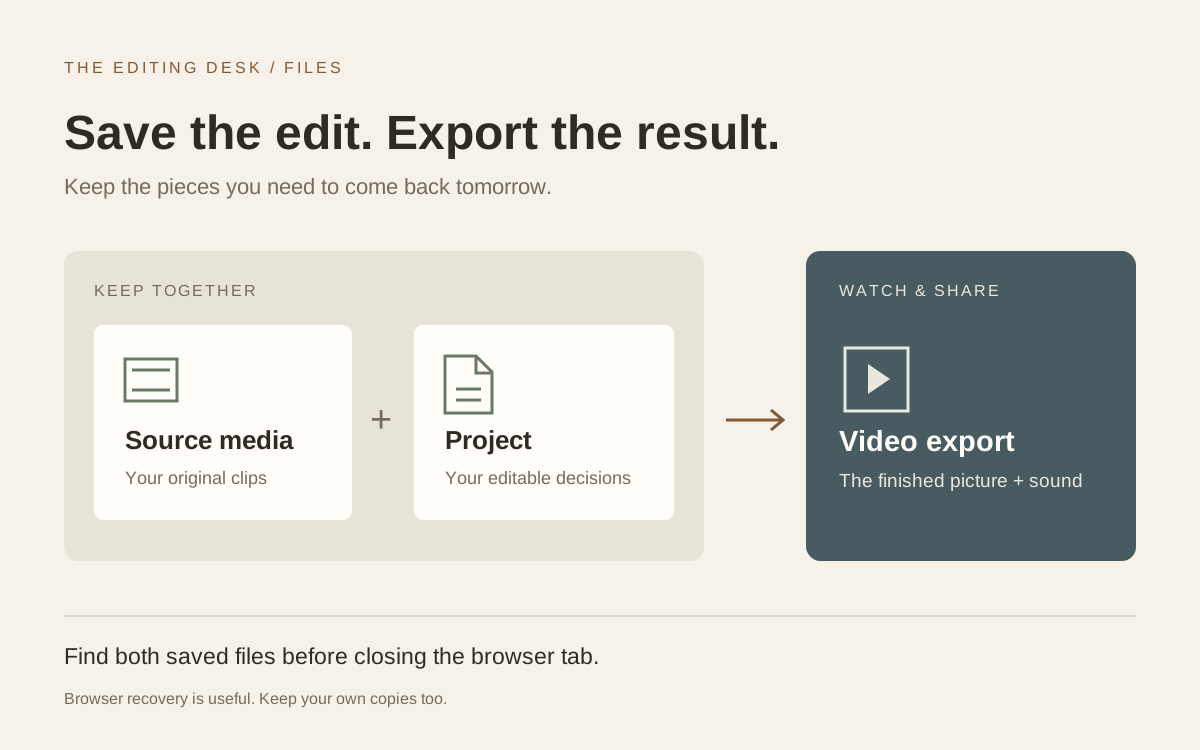
A practical file-keeping model: retain the sources and project for future
edits; use the exported video for playback and delivery.
The official project-file documentation describes FilmCraft's .fcproj format and recovery. Browser recovery additionally depends on site storage. Treat that recovery as a convenience, not your only copy: explicitly save and locate the project before closing the tab or clearing browser data.
Create a folder for the exercise with separate places for sources and exports. When the browser offers a download, check the filename and destination. If multiple copies acquire suffixes such as (1), rename the approved version once the download is complete. Keep the saved project with the source files it needs.
Before leaving the editor, verify this checklist:
The project file exists outside the browser's temporary state.
The source clips are still available in their original folder.
The exported video has finished downloading and opens in another player.
You know which project copy corresponds to the export you approved.
4. Check the downloaded video
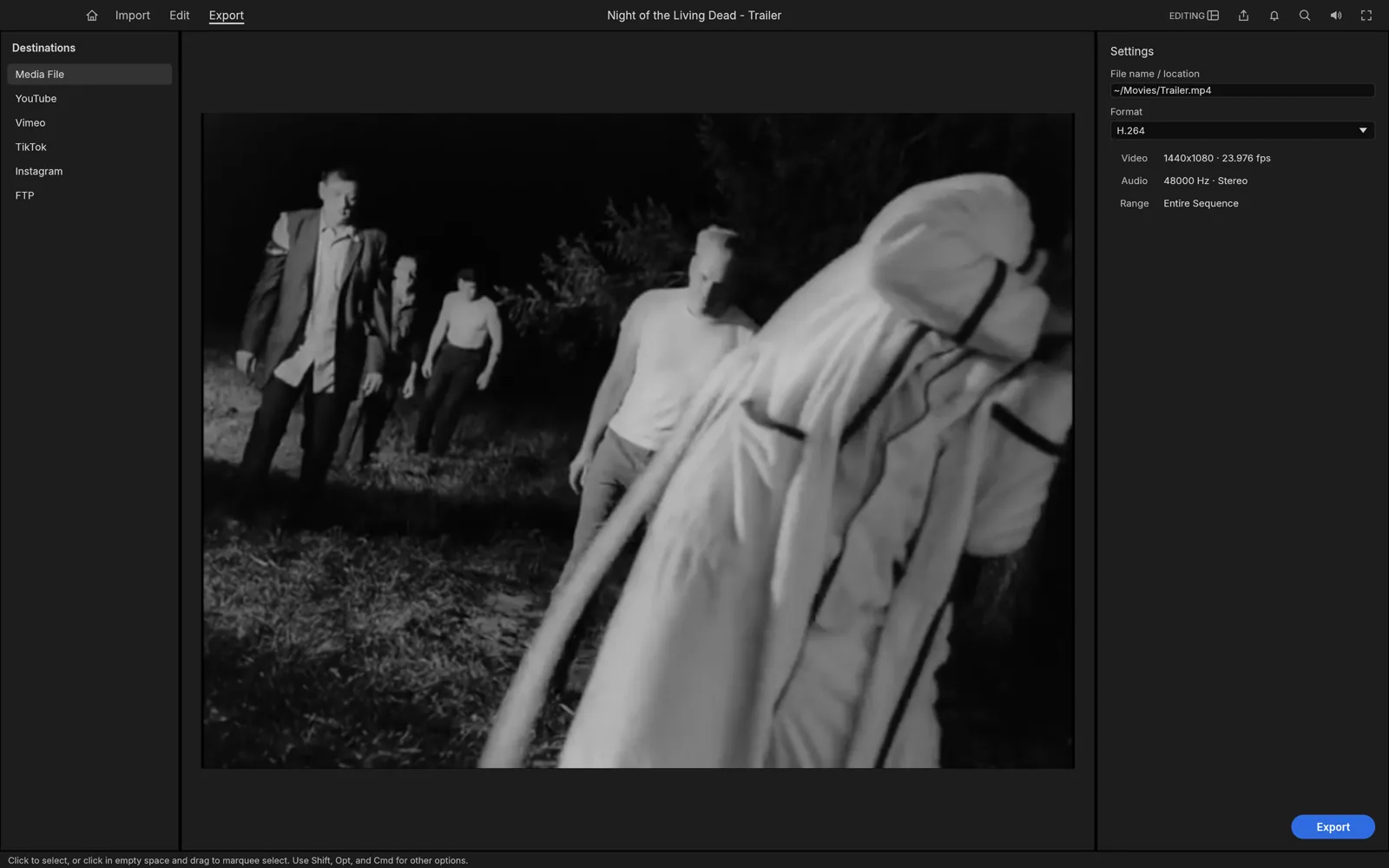
Choose a short sequence range for the first test and inspect the destination, output format and audio settings. H.264 MP4 is a useful initial target supported by FilmCraft's documented export workflow. Wait for the export job and the browser download to finish before judging the file.
Export-workspace reference. Check your own dimensions, frame rate, range and
audio; the demonstration's settings are not a universal preset.
Play the download in a separate application. Check that the duration matches your edit, that the title is visible, and that sound continues through the ending. If the file is wrong, change one setting and repeat the short test. Re-exporting an entire long project makes diagnosis slower and can leave confusing duplicate files.
5. Know when to move to the desktop app
Browser editing is useful for evaluating the interface and trying short sequences. It is not a promise that every machine can play a long, layered project smoothly. The official web notes explain that the current build runs editing work cooperatively on the UI thread and that some desktop operations are unavailable there.
If the small trial is already slow, simplify it before adding more footage: reduce the number of active clips, remove optional effects and test one source file. When the project needs sustained performance or a desktop-only operation, use the desktop download guide. Preserve your project and media so you can test the move before committing to a larger workflow.
Common questions about FilmCraft online
Can I reopen work just by returning to the same tab?
Recovery may help, but do not depend on it as a backup. Browser profiles, site data and the hosting address affect what is available. Keep an explicit project save and the source clips, then test reopening a copy before a serious session.
Does exporting also save the editable project?
Do not assume it does. Save the project separately. A rendered video does not preserve the original arrangement of editable clips, text and effects.
What if the editor loads but cannot play my footage?
Try a short second clip to separate a media-specific issue from a general browser problem. Record the file format, browser version and what failed. For blank screens, loading errors and graphics fallback, use the Web setup troubleshooting checklist.