
01
Install and open FilmCraft
Download FilmCraft for your system from our download guide, or run the web build in your browser. On first launch it loads a demo project, a good sandbox to click around in before you start your own.
Basic tutorial · Updated October 2026
Ten short steps from a blank project to an exported MP4. If you have used Premiere Pro before, most of this will feel like home.
01
Download FilmCraft for your system from our download guide, or run the web build in your browser. On first launch it loads a demo project, a good sandbox to click around in before you start your own.
02
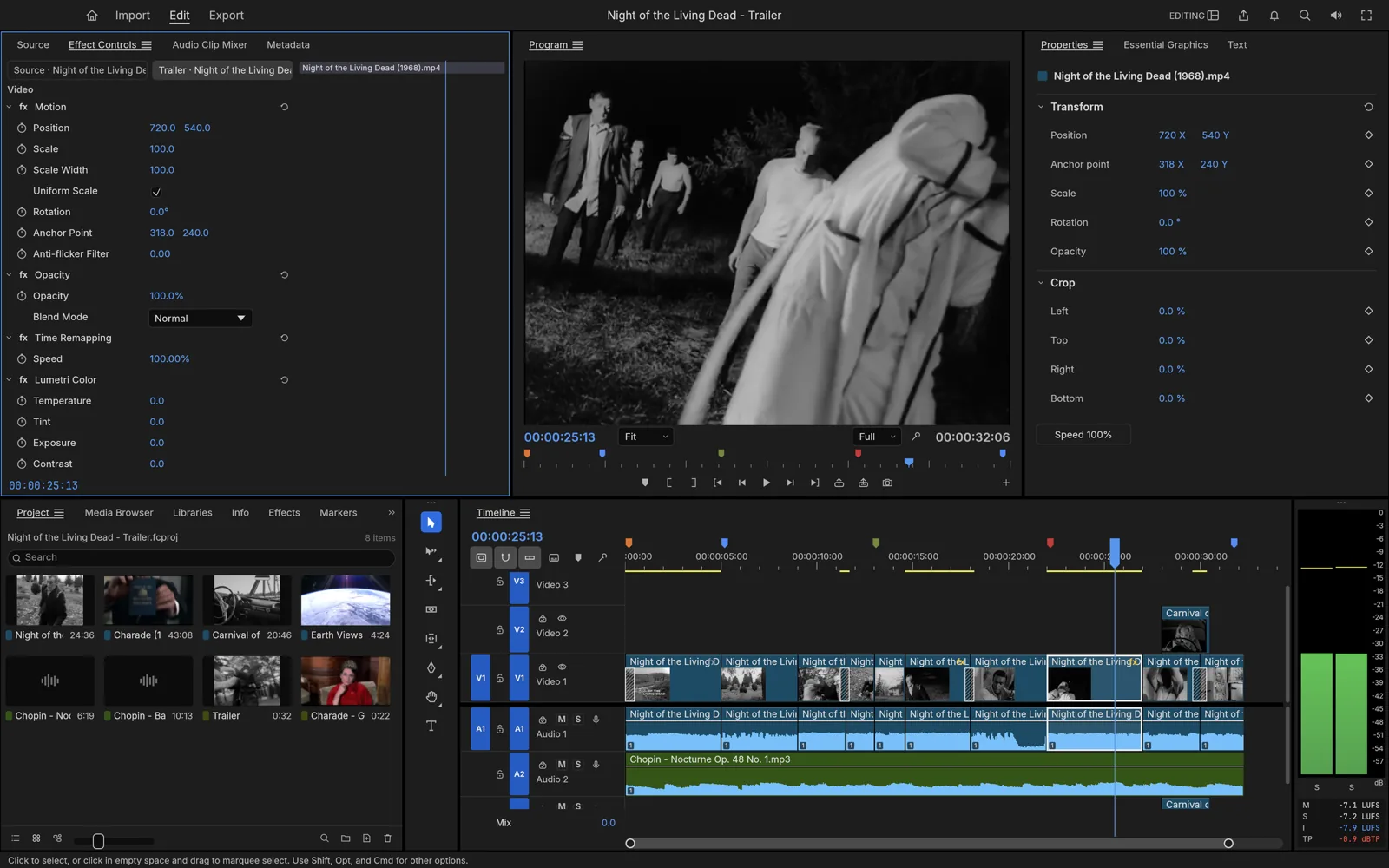
The layout mirrors Premiere Pro: the Project panel (bottom left) holds your media bins; the Source monitor and Effect Controls share the top left; the Program monitor (top center) plays your sequence; the Timeline sits bottom center; audio meters run down the right edge. The tabs at the top switch between Import, Edit and Export.
03
Switch to Import, or drag files straight into the Project panel. FilmCraft reads MP4/MOV, MKV/WebM and AVI video, common audio (AAC, MP3, WAV, FLAC) and stills (PNG, JPEG, WebP, TIFF). Organize clips into bins as you go.
04
Double-click a clip to load it into the Source monitor, mark an In and Out point, place the playhead on the timeline, then press , (comma) to insert or . (period) to overwrite. Repeat until your story is in order.
05
Use ripple, roll, slip and slide trims to refine every edit. Q and W ripple-trim the clip start or end to the playhead; Alt/Option + arrow keys nudge an edit point (add Shift for ×5); J, K and L trim dynamically while playing. Cmd/Ctrl + K adds an edit at the playhead.
06
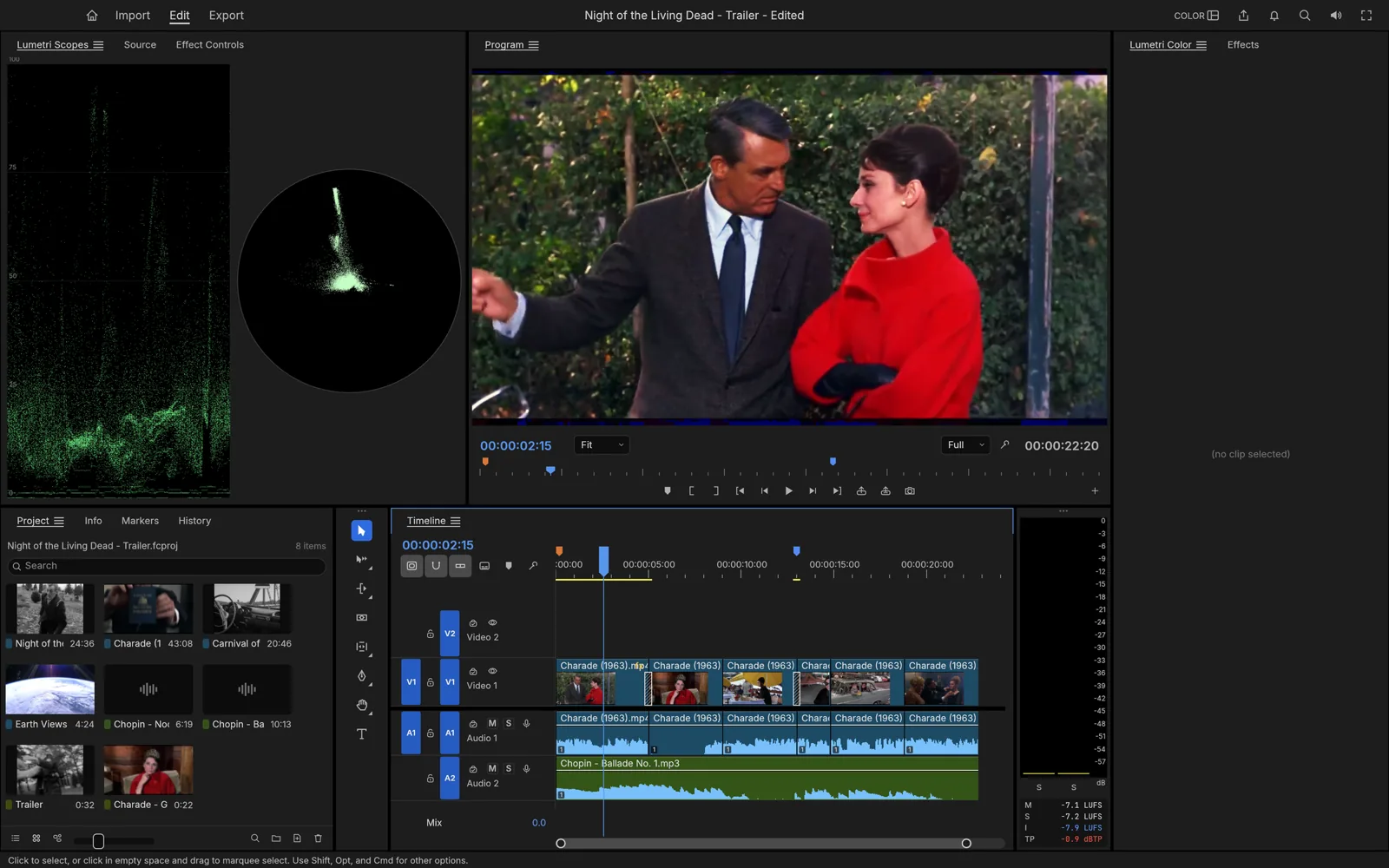
Select a clip and open its color controls. Start with basic correction (exposure, contrast, temperature), then shape the look with curves, color wheels, HSL secondaries or a LUT. Keep the waveform and vectorscope open so you are grading with data, not guesses.
07
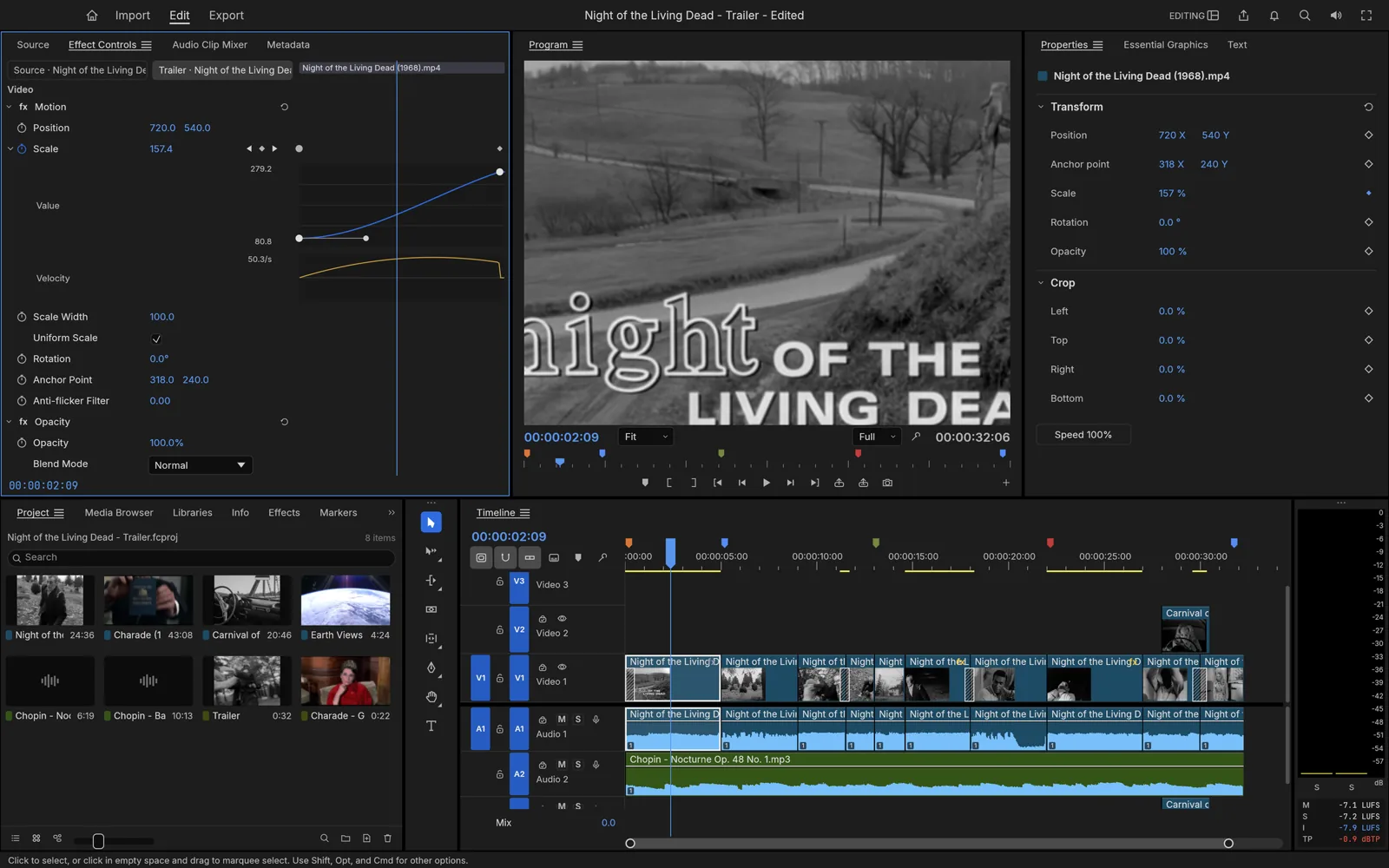
Drag any of 90+ effects or ~30 transitions from the Effects panel onto a clip or cut. In Effect Controls, click the stopwatch beside a property to start keyframing, move the playhead and change the value. Then open the velocity graph to ease the motion.
08
Balance levels in the Audio Clip Mixer and add automation for fades and ducking. Watch the EBU R128 loudness meters: around -14 LUFS suits most online platforms, and -23 LUFS is the broadcast standard.
09
Use the text tool to place titles and lower thirds, and the shape and pen tools for simple graphics. Caption tracks keep subtitles editable and separate from your picture.
10
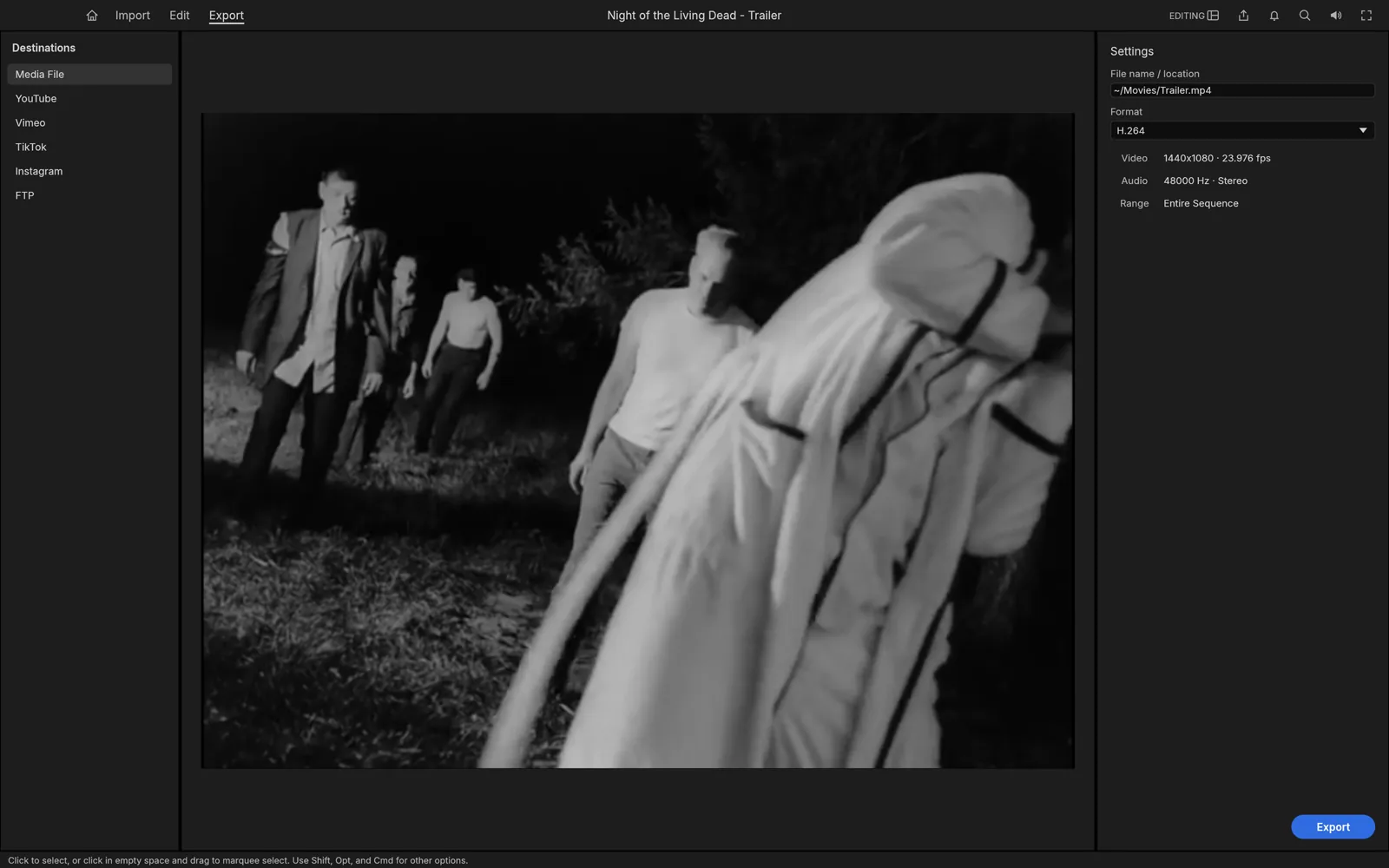
Switch to Export, choose H.264 MP4 for the web or ProRes 422 HQ for a high-quality master, set the range and destination, and render. Rendering runs in the background, so you can keep editing.
Open the keyboard shortcut editor with Option + Cmd + K (Alt + Ctrl + K on Windows/Linux) to see or remap every key.
See exactly what carries over, what is missing, and how to move your projects.