FilmCraft Web: Local Setup and Browser Troubleshooting
Run the official FilmCraft web build on localhost, check WebGPU and WebGL startup, and diagnose missing files, blank screens and media problems.
Filmcraft · Updated
Loading guide…
FilmCraft Web is the browser build of FilmCraft, packaged as a static web application. The practical setup is to download an official release, extract its files, serve that folder, and open the server address in your browser. Opening index.html directly from your file manager is not the same as running a local web server.
This guide focuses on getting the application to load reliably. For editing and file-keeping after launch, use FilmCraft online: edit, save and export. The homepage explains the editor and links to desktop alternatives.
1. Get the official web package
Visit the official FilmCraft release page and look for the web archive named filmcraft-web-<version>.zip. Use the version shown on that release. This naming pattern is documented in the project's download information; asset availability can change between releases.
Extract the archive into its own folder. Keep the JavaScript, WebAssembly, HTML and other bundled files together. Do not combine a new .wasm file with JavaScript left over from another version. If the archive contains an extra enclosing directory, locate the folder that actually contains index.html before starting the server.
For an easier route to the available files, our download page groups release assets by platform. Choose the web build for this exercise, not a desktop installer or source-code archive.
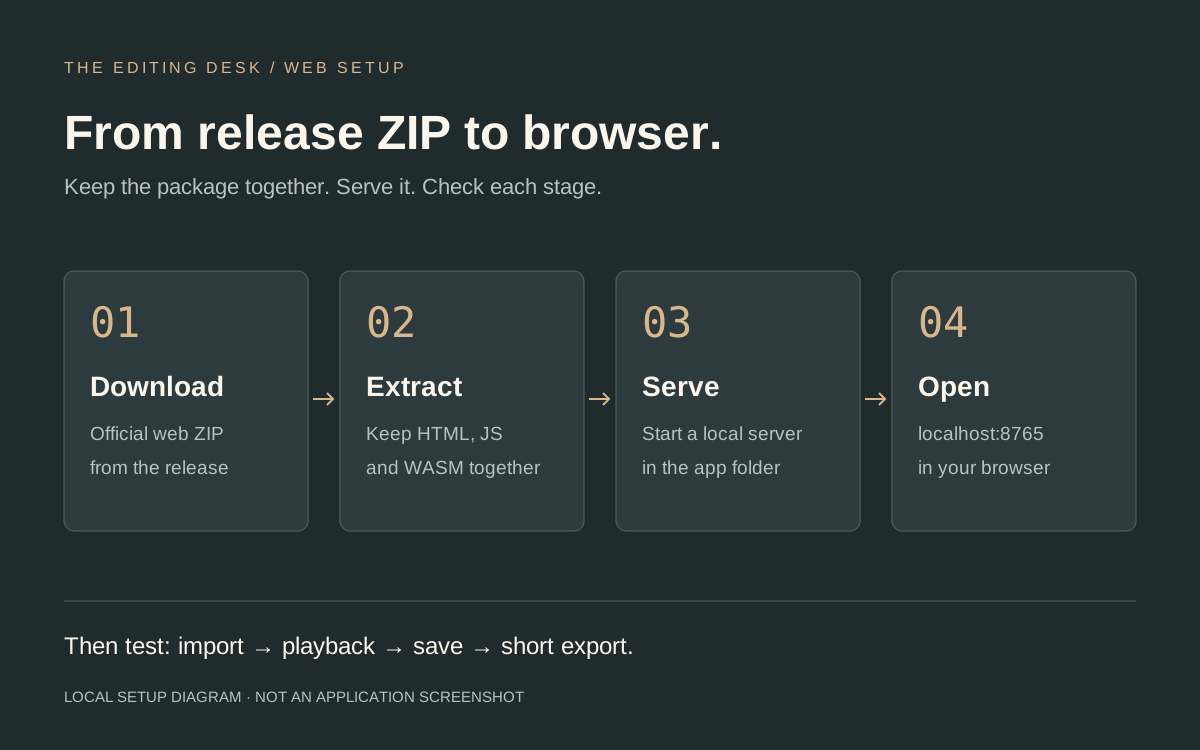
The local setup path. The web server supplies the application files; editing
happens in the browser. This is an explanatory diagram, not an application
screenshot.
Serve the extracted folder on localhost
If Python 3 is installed, open a terminal in the folder containing index.html and run:
python3 -m http.server 8765 --bind 127.0.0.1
On Windows, a Python installation with the py launcher can use:
py -m http.server 8765 --bind 127.0.0.1
Leave that terminal running and open http://localhost:8765 in your browser. Binding to the loopback address keeps this test server on your machine. Stop it with Ctrl+C when finished. If port 8765 is already occupied, choose another unused port and change the browser address to match.
This is a basic local trial. FilmCraft's official web documentation also describes building from source and its dedicated development server. A generic Python server does not automatically supply that server's cross-origin isolation headers.
3. Verify the first launch
Check the address bar first: it should show localhost and the port you started. A directory listing usually means you served the wrong folder or the entry file is missing. A browser connection error usually means the server is not running at that address.
Once the workspace appears, use a small clip to test three operations separately: import, playback and a short export. Write down which stage fails. “The browser version does not work” is too broad to diagnose; “the workspace loads, but this one clip has no picture” gives you a useful next test.
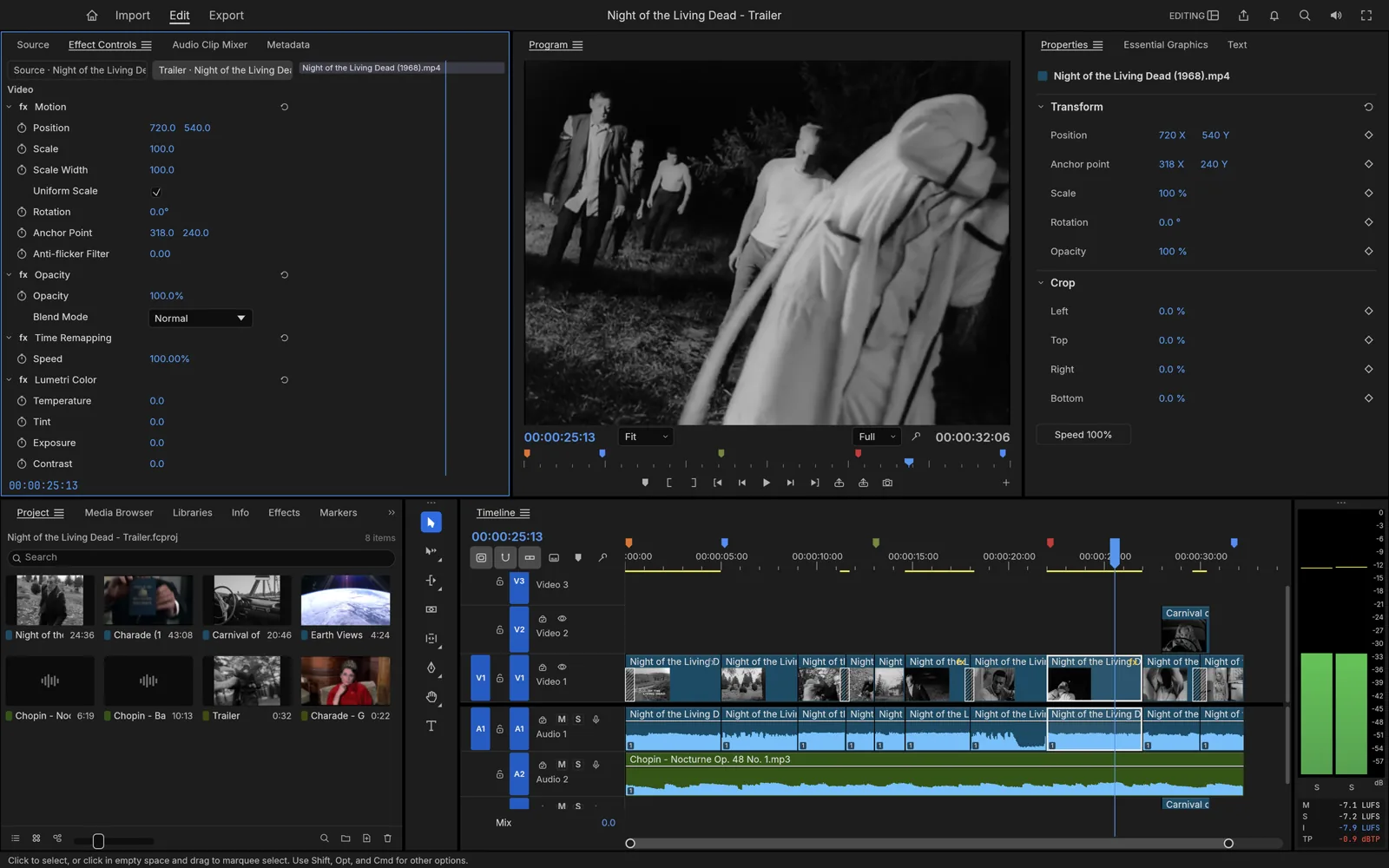
Workspace reference: loading the editor UI is the first checkpoint. Import,
sound, saving and export still need their own small tests. The pictured
project is a desktop demonstration.
4. Troubleshoot in a useful order
Start with application delivery, then graphics startup, then media. Changing all three at once makes it difficult to learn which change helped.
What you see
Check next
Connection refused
Confirm the terminal server is still running and the port matches.
A folder listing
Serve the directory that contains index.html.
A missing JavaScript or .wasm request
Re-extract the complete archive and check paths in the browser's
Network panel.
A WebAssembly MIME-type error
Configure the server to serve .wasm as
application/wasm.
A blank editor after files finish loading
Try the documented graphics fallback below, then inspect the browser
console.
Only one clip fails
Try another small file before changing the installation.
Picture plays but audio does not
Click in the editor and check tab mute, system output and track
controls.
The official build documents ?webgl to request WebGL2 and ?cpu for the CPU compositor. Test one at a time:
These are diagnostic options, not promises of faster playback. If you are editing already, save first: changing the URL reloads the app. Avoid experimenting with recovery-reset flags on your only working copy. See the upstream URL flags and GPU notes for their exact meaning.
If a fresh release behaves differently, use a new extracted folder and test it with the same small clip. Keep the previous project copy until the new build has passed your save-and-export trial. For a bug report, include the release, operating system, browser version, failed step and a shareable sample that reproduces it.
Moving from localhost to a hosted site
For remote hosting, preserve the package's directory structure and configure the server for WebAssembly files. Use HTTPS and verify the actual editor URL, including any subdirectory. A successful homepage response does not prove that its scripts and .wasm file are reachable.
FilmCraft's own server example includes cross-origin isolation headers. If your hosting environment needs the same behavior, follow the upstream deployment notes and check the result in a browser. Enabling those headers can also affect which external resources the page may load, so test the whole application after changing them.
Do not make a public host your first debugging step. Prove the package works locally, then change the hosting environment while keeping the test clip and release constant. That gives you a clean comparison when a request path, header or browser permission behaves differently.
6. Start an editing session
Once import, playback and a short export all work, continue with the online editing guide. It explains what to keep before closing the tab. If the web build remains unsuitable for your footage or machine, use the desktop download guide and repeat the same small test there.