FilmCraft Tutorial: Edit Your First 30-Second Video
A practical FilmCraft tutorial: plan a three-shot sequence, import and trim clips, add a title, balance sound, and check your first MP4 export.
Filmcraft · Updated
Loading guide…
A useful first FilmCraft project is a short sequence you can finish and watch outside the editor. This tutorial gives you a concrete exercise: three shots, one title and a clean ending, lasting about 30 seconds. The timings below are an example editing plan; change them to suit your footage.
Choose an establishing shot, a closer view of the action and a final detail. A coffee being prepared, a walk through a garden or a product demonstration all work. Keep your original clips in one project folder and leave their filenames unchanged while editing. Use footage and music you have permission to publish.
For the first attempt, keep all three clips in the same orientation and use a modest resolution. Mixing portrait and landscape footage adds a framing decision to every cut. A short practice project also makes it easier to tell whether a problem belongs to one source clip or the whole sequence.
Open FilmCraft and choose File → Import… to bring in your clips.
In the Project panel, right-click your main clip and select New Sequence From Clip.
Save a project copy before experimenting. Keep the original footage alongside it.
These starting commands are documented in the official getting-started exercise. FilmCraft is developing quickly, so match instructions to your installed release when a label differs.
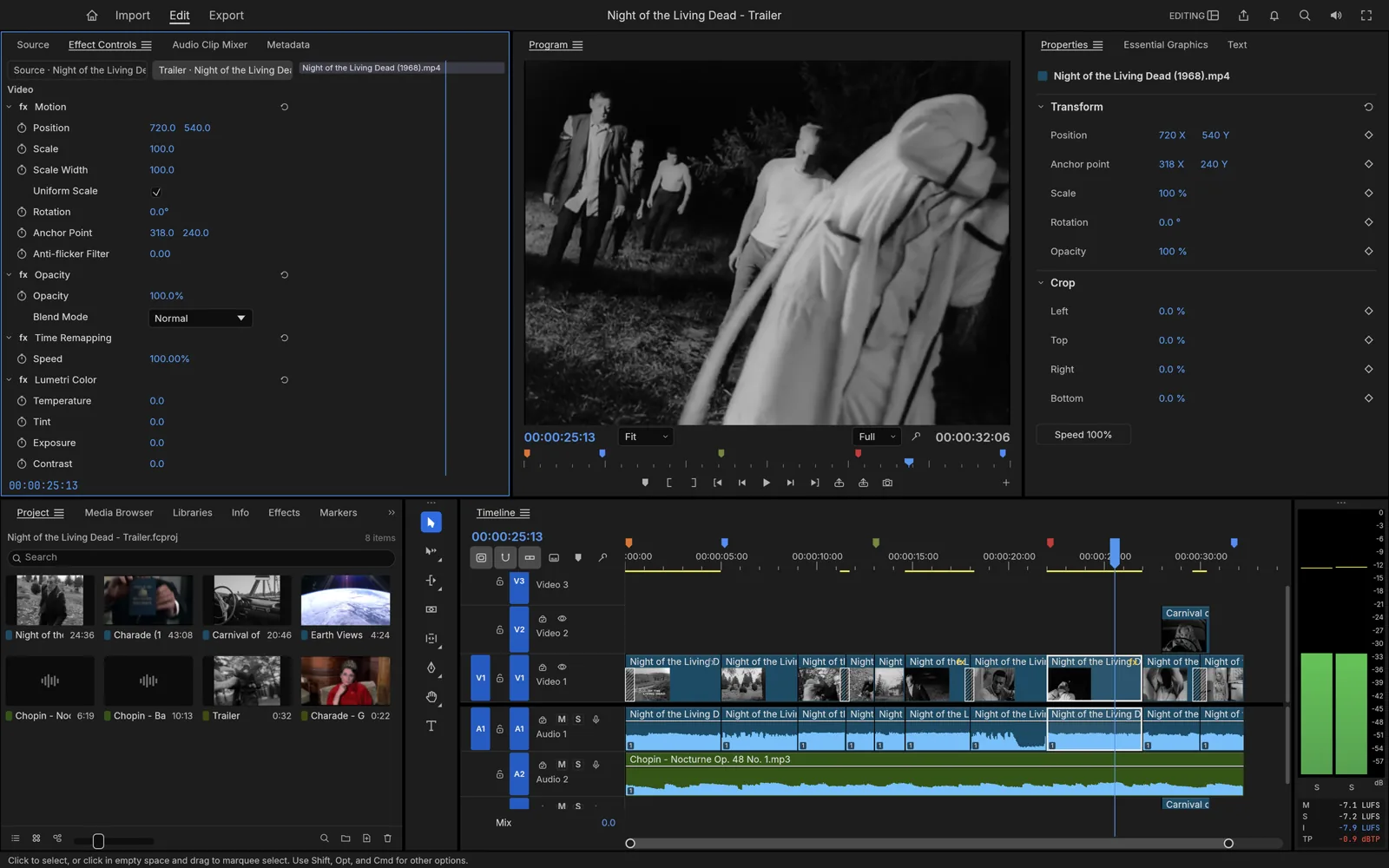
Interface reference: use the Project panel to find media, the Program monitor
to judge the picture, and the Timeline to arrange the sequence. This existing
demonstration project is not the practice video described here.
2. Build the rough cut
Arrange your opening, action and detail shots in that order on the same video track. Aim for a clear change in information at each cut: where are we, what happens, and what should the viewer notice? Do not add transitions yet. A simple cut makes it easier to hear and see whether two shots belong together.
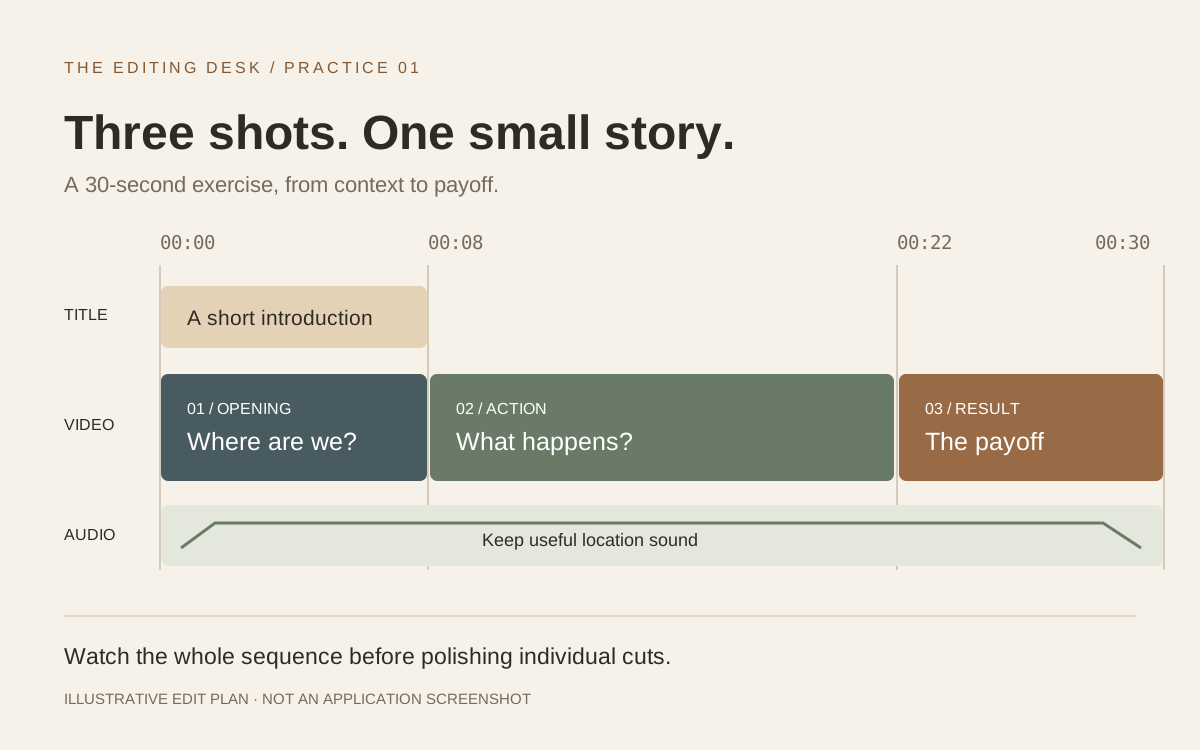
Use this timing plan as a starting point:
Sequence time
Picture
Editing purpose
0–8 seconds
Wide or establishing view
Give the viewer enough context to understand the scene.
8–22 seconds
Main action
Keep the part that shows the change or process.
22–30 seconds
Detail or result
End on a useful payoff instead of an accidental camera movement.
If a shot needs longer to make sense, take time from another shot. Thirty seconds is the exercise constraint, not a rule about good editing. Watch the whole sequence once before making small adjustments; otherwise it is easy to perfect a shot that later gets removed.
An illustrative edit plan, not a FilmCraft screenshot. Each cut should add
information; the title sits above the opening picture.
3. Trim and review the story
Trim away the moment before an action starts and the moment after it finishes. Preview every join at normal speed. A cut that looks tidy while scrubbing can still feel rushed when watched continuously.
FilmCraft provides ripple trimming, a razor tool and separate source and sequence controls. The official editing overview explains those tools. For this exercise, work with one adjustment at a time: shorten the unwanted section, replay the join, then undo if the rhythm gets worse. Our FilmCraft shortcuts guide gives you a small set of keys to practise after the basic mouse workflow feels comfortable.
Check the picture and sound together. Removing a pause from the image may also remove a word or a useful background sound. If audio and video become misaligned, undo the last edit and inspect the selected clips before trying again.
Add one title and balance the sound
Place the playhead over the opening shot. The Type tool can create text in the Program monitor; the resulting graphic has its own duration on a video track. Adjust the text in Properties and keep it above the picture. These controls are described in the official graphics documentation.
Use a short title that explains the scene. Leave a comfortable margin around it, choose a readable size, and check it over the brightest and darkest frames it crosses. A title that is legible on the first frame may disappear when the background moves. Keep it on screen long enough to read aloud once without rushing.
Listen on headphones, then on ordinary speakers. If speech is the point of the video, lower music until every word is easy to understand. If there is no speech, preserve useful location sound instead of automatically covering it with music. A change in volume should serve the scene, not draw attention to the controls.
For a soft ending, treat picture and sound separately. The official fade exercise uses a Cross Dissolve for picture and Volume keyframes for sound. Adding a video fade alone does not make the audio fade.
Save the project, then export a video
Saving and exporting solve different problems. Your project keeps the editable decisions; an exported video is the file you can watch or share. Keep both. Do not discard source media after producing the MP4: the editable project may still need those files.
In Export, select a media-file output and use H.264 MP4 for this practice delivery. Check the sequence range, dimensions, frame rate and audio before starting. FilmCraft documents H.264 with AAC in its export overview. Avoid increasing resolution simply to get a larger number; it cannot restore detail the source never captured.
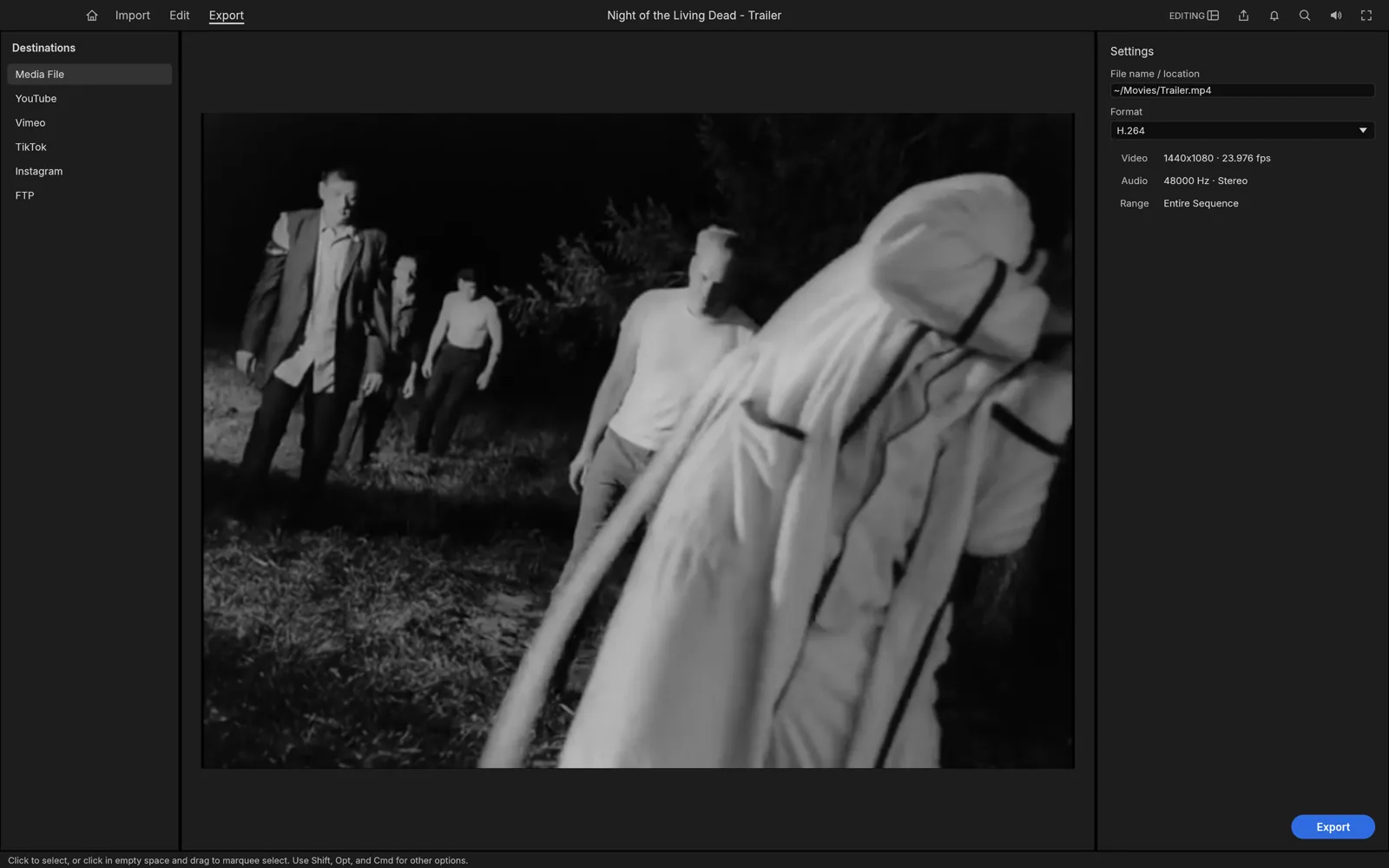
Export reference: inspect the output format and range before rendering. The
values shown belong to the demonstration footage, so use settings appropriate
to your own sequence.
Open the finished file in a separate player. Watch from beginning to end and check four things: the first frame, both cuts, the title, and the last second of sound. Confirm that the file is the expected length and plays without relying on the editor. Rename approved exports clearly so a draft is not mistaken for the final version.
6. Fix common first-edit problems
Symptom
First check
A black gap appears between shots
Zoom in at the join and look for empty timeline space.
A cut removes the wrong material
Check which clip, track and panel are selected, then undo.
Text disappears too soon
Check the graphic clip's duration and the playhead position.
Music overwhelms speech
Listen to the same sentence repeatedly while lowering the music.
The export is shorter than the edit
Check whether the export uses a marked range or the entire sequence.
A source file is missing after reopening
Restore its location or use the app's relinking workflow; preserve
originals.
Once the first video works, duplicate the project and try one change: a tighter middle shot, a different ending or a quieter music bed. Comparing complete versions teaches more than adding effects at random. For a browser workflow, continue with FilmCraft online: edit, save and export.