FilmCraft Shortcuts: A Practical Keyboard Guide for Editing
Learn FilmCraft playback, trim and tool shortcuts, check the active preset, and troubleshoot keys that behave differently across panels or platforms.
Filmcraft · Updated
Loading guide…
The most useful FilmCraft shortcuts are the ones that remove repeated interruptions from your editing. Start with playback, selection and a simple trim. Learn more only when a recurring action is slowing you down. A long list of unpractised keys is less useful than five you can use confidently.
Open Edit → Keyboard Shortcuts… and inspect the active set. FilmCraft has its own default layout and a Premiere Pro Compatible preset. They overlap, but they are not identical. The official keyboard documentation gives one concrete example: Shift+E is Clip Enable in FilmCraft Default and Export Frame in the compatible preset.
Confirm the command name in your shortcut editor before learning a new combination. On macOS, references may use Command (⌘) and Option (⌥); Windows and Linux combinations should be checked in the app instead of mechanically replacing every symbol. Custom bindings and keyboard layouts can also change what you need to press.
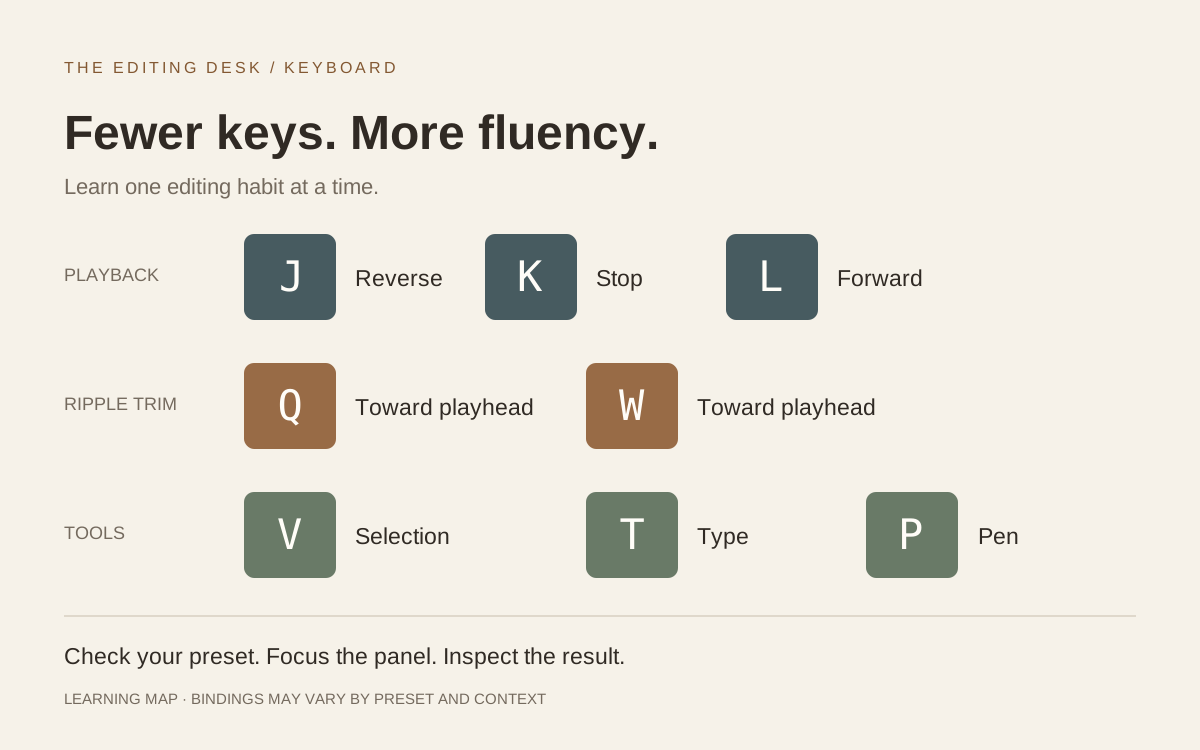
A learning map for common editing keys, not a full keyboard or a screenshot.
Confirm bindings in your active preset before practising.
Reverse / stop / forward playback; also used in dynamic trimming
Check whether you are in a normal playback or trim workflow.
V
Selection Tool
Use it to select and move rather than draw or type.
T
Type Tool in the Program monitor
Check that the playhead is over the intended title location.
P
Pen Tool
Its action depends on whether you are editing graphics or a timeline
parameter.
Q / W
Ripple trim toward the playhead
Inspect targeted tracks and the material that will be removed.
E
Extend an edit to the playhead in the trim workflow
Select the intended edit point first.
Comma / period
Insert / overwrite from the Source monitor
Set the source range and check track patching.
Do not practise ripple operations on your only project copy. Save a duplicate, make the edit and immediately inspect what moved. If the result is surprising, use Undo before making another change; several small edits can hide the original mistake.
Practise a five-minute keyboard session
Choose a short, disposable sequence. The objective is not to edit as fast as possible. It is to make the result predictable enough that you no longer need to think about each key.
Click the Timeline and start playback with Space. Stop at a useful moment.
Try J, K and L while watching both direction and speed. Stop before switching tasks.
Choose V and select one clip. Confirm the selection visually.
Perform one trim, replay the join, and undo it. Repeat until the result is easy to anticipate.
Move to a title and use T only when you intend to edit text. Exit text entry before returning to playback keys.
Practise the same tiny sequence twice. On the second pass, notice which mouse movement was unnecessary and which one established important context. A click to focus the correct panel is useful; removing it without understanding focus can make a shortcut less reliable.
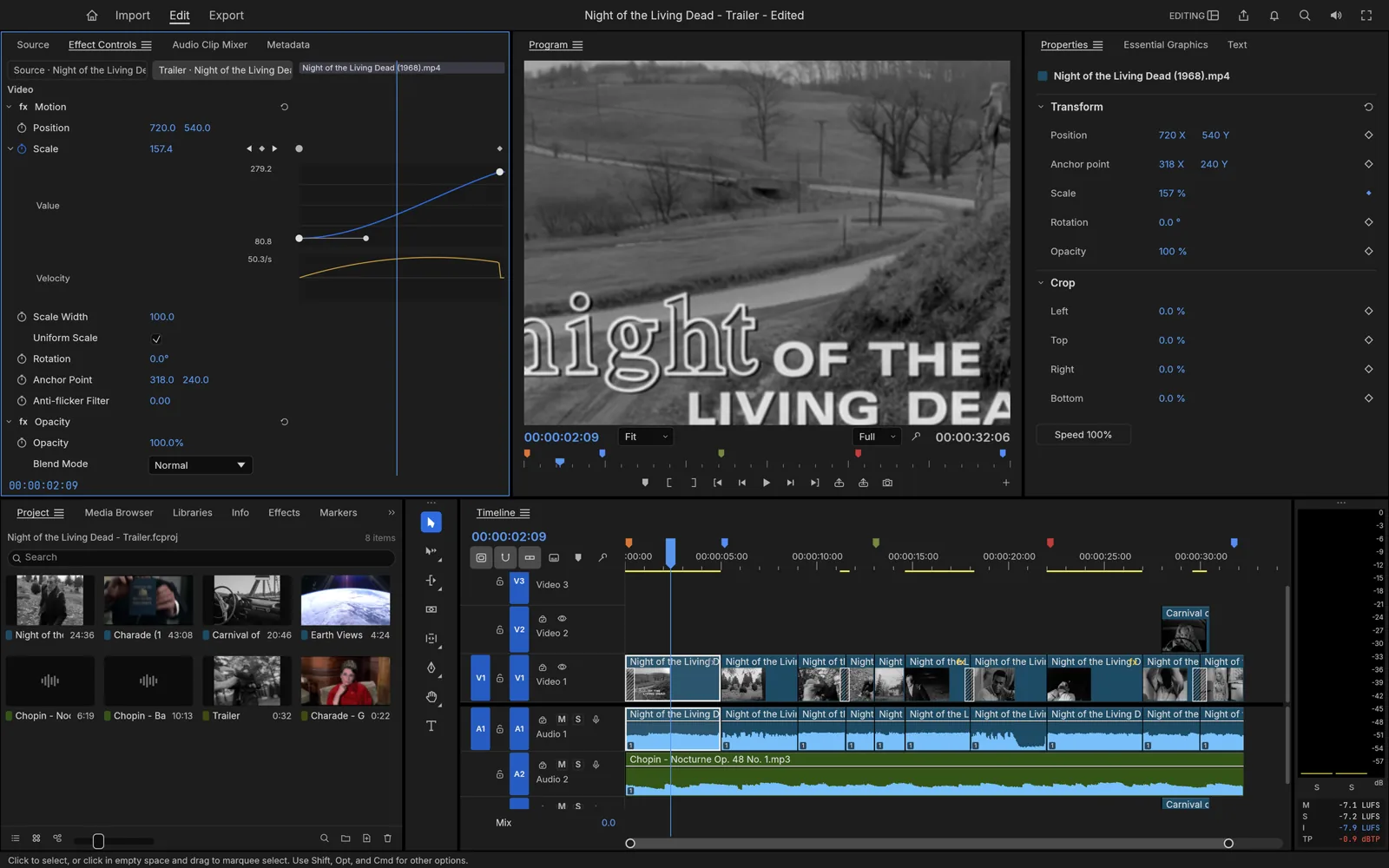
Panel context matters. The Timeline, Program monitor and Effect Controls can
each interpret an action differently depending on selection and focus.
Understand why panel focus changes a shortcut
A shortcut is not simply a key attached to the whole application. FilmCraft supports panel-specific bindings. A text field can also consume a keystroke as input. Before diagnosing a broken command, look for the active panel, selected object and any open text entry.
For example, pressing a letter while typing a title should change the title. It should not be interpreted as a timeline tool command. Finish text entry, select the appropriate panel and try the action again. Likewise, moving a graphic layer and moving a timeline clip are different operations even if a preset uses similar modifier keys.
When you learn a command, remember the context with it: “select an edit point, then extend” is a better habit than remembering E alone. The same applies to source insertion: identify the source range and destination tracks before pressing the shortcut.
Customize deliberately and keep a copy
Change one frequently used command at a time. Choose a combination that is comfortable on your actual keyboard, check for conflicts in the shortcut editor and test it in the intended panel. Avoid rebuilding the entire layout before you know which operations you use most.
FilmCraft's shortcut editor can export and import its own JSON presets. The official keyboard reference states that Adobe .kys files cannot currently be imported. Selecting a Premiere-compatible layout inside FilmCraft is different from loading an exported Adobe keyboard file.
Export a copy after your custom set feels stable. Give the file a descriptive name and keep a brief note of the changes you made. That makes another computer or a future reinstall easier to set up. After updating the application, recheck the few commands you rely on most before starting a long session.
6. Troubleshoot shortcut problems
Problem
Useful first check
The key types a character instead of editing
Exit the text or value field and focus the intended panel.
A shortcut performs another action
Inspect the active preset and search for that key in the shortcut
editor.
A trim changes the wrong material
Inspect selection, targeted tracks and the playhead before repeating.
A web browser consumes the combination
Try the command through the app's menu; use a different binding or
desktop workflow.
Instructions show Mac symbols on another platform
Read the binding displayed by your installation.
A downloaded preset cannot be imported
Confirm it is FilmCraft's own preset format, rather than an Adobe
.kys file.
If a command works through its menu but not its key, concentrate on bindings and focus. If neither works, inspect whether the command is available for the current selection. Keep your practice small and return to the 30-second editing exercise when you are ready to combine the shortcuts into a finished project.