FilmCraft Shortcuts for Premiere Pro Users: A Migration Checklist
Choose the compatible preset, compare familiar commands, check panel focus, and rebuild a portable shortcut set without importing a Premiere .kys file.
Filmcraft · Updated
Loading guide…
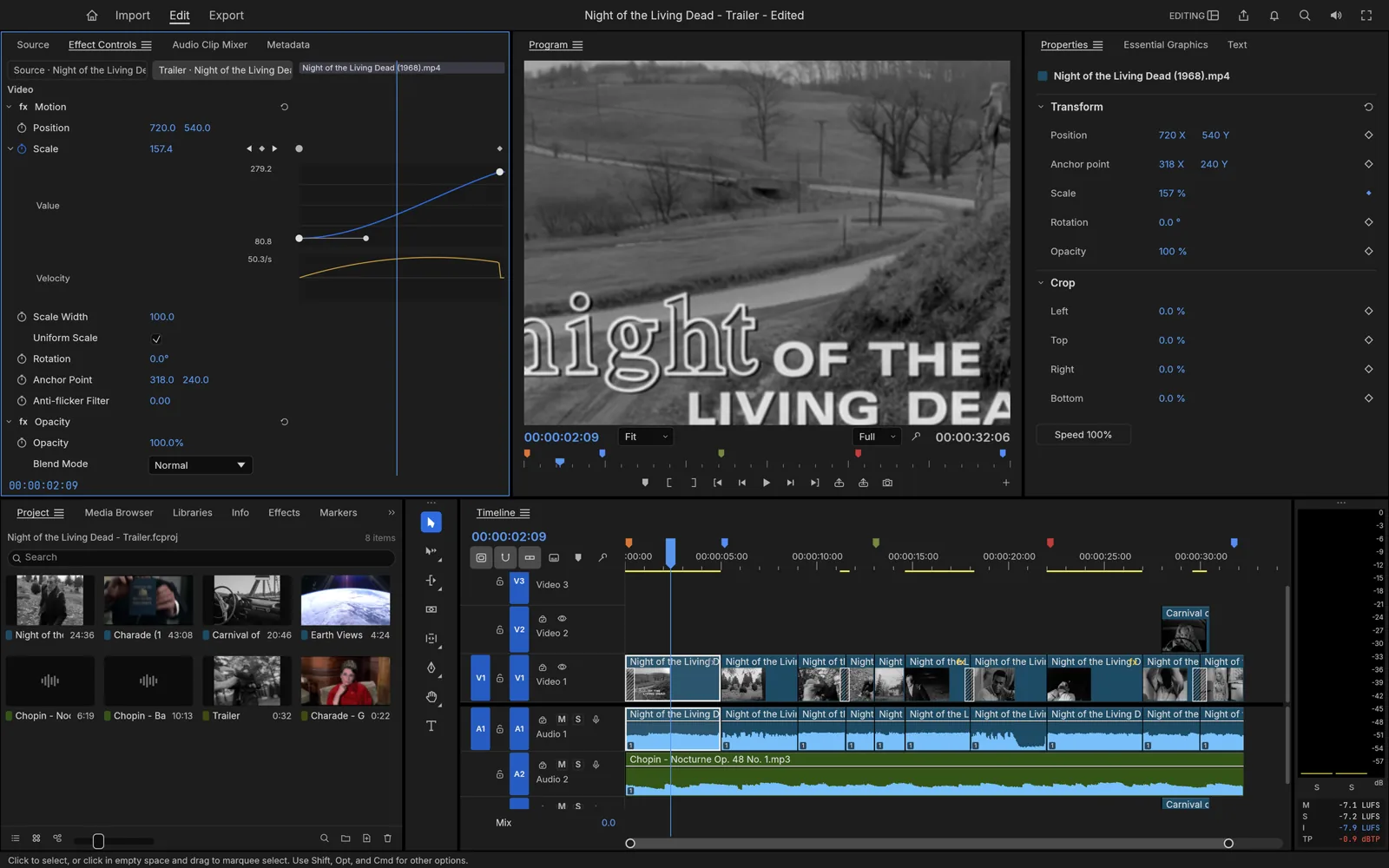
Moving from Premiere Pro is easier when you migrate commands deliberately. A familiar key can perform a different action in another preset, and a correct binding can still behave differently when the wrong panel has focus. This guide is a migration checklist; the general shortcuts guide covers a smaller beginner set.
The references below follow the official FilmCraft v0.20.1 keyboard documentation. Its Premiere-compatible reference uses macOS notation. Read Command as Command and Option as Option; check the actual Windows or Linux binding inside FilmCraft instead of assuming every modifier can be substituted.
1. Choose and back up a preset
Open Edit → Keyboard Shortcuts…. If you already changed bindings, export your current set before switching. Select Premiere Pro Compatible and inspect the command names for the actions you use every day. FilmCraft also has a FilmCraft Default preset; the names matter because these sets are not identical.
FilmCraft imports and exports its own JSON shortcut files. A Premiere .kys file cannot currently be imported. Keep your old Premiere configuration as a reference, then recreate only the bindings you need. Export the new FilmCraft set after checking it so a reinstall does not erase your work.
2. Compare commands, not just key labels
Editing intention
Compatible preset reference
What to check in FilmCraft
Move to the next or previous edit
Down / Up
These follow targeted tracks. Shift+Down / Up searches any track.
Select the clip at the playhead
D
Focus the Timeline and check the playhead position first.
Extend the previous or next edit to the playhead
Shift+Q / Shift+W
Check the edit and track targets on a disposable sequence.
Set the work area boundaries
Option+[ / Option+]
This is a Timeline command; the work area is distinct from source In and
Out points.
Export a still frame
Shift+E
FilmCraft Default assigns this key to Clip Enable instead.
Find an item in the Project panel
Shift+F
Panel focus determines which find box receives input.
A shortcut table is a starting reference, not proof that your customized installation has those bindings. Search for the command in the shortcut editor when a key does something unexpected. Do not repeatedly press a destructive trim key while trying to discover what it controls.
Selection and panel focus are part of the shortcut workflow. Confirm the
active panel before testing a familiar key.
3. Run a small migration exercise
Save a separate practice project and place several clips on a sequence.
Click the Timeline, target the intended tracks, and move between edits with Up and Down. Compare the result with the any-track variants.
Put the playhead inside a clip and use Select Clip at Playhead. Confirm the highlight before changing anything.
Test one extend-edit command, play across the result, and undo it. Check that linked audio remains aligned.
Focus the Program monitor and test Export Frame. If the clip becomes disabled, return to the preset selector rather than assuming the export failed.
Export your verified custom shortcut JSON and store it with your editing setup notes.
Resolve conflicts before building muscle memory
Finish typing in text and number fields before using application shortcuts. If the key still fails, try the command through its menu: a disabled menu command usually points to selection or context, while a working menu command points toward the binding or keyboard layout. Check both application-wide and panel-specific assignments before replacing a shortcut.