FilmCraft vs DaVinci Resolve: Choose by Testing Your Editing Workflow
Compare an open-source editing workflow with Resolve’s editing, color, Fusion, and Fairlight tools, then test your own footage before committing a project.
Filmcraft · Updated
Loading guide…
FilmCraft and DaVinci Resolve can both be considered for editing, but choosing between them should begin with the work you need to finish. A simple cut with titles, an effects-heavy sequence, and a collaborative color finish place different demands on an application. This comparison provides a practical evaluation process, not benchmark scores or a claim that one editor wins on every machine.
FilmCraft's documentation describes an open-source editor with timeline editing, color controls, captions, audio processing, and export, while also identifying the project as early-stage software. DaVinci Resolve brings editing, color, Fusion effects, and Fairlight audio into a single application. Its free edition and Studio edition have different capabilities, so compare the actual edition you plan to use.
Write down the requirements that could decide the choice
Your requirement
What to investigate
Open source and inspectable behavior
FilmCraft publishes its source and implementation documentation. Check
whether its current functionality covers the job.
Dedicated color, compositing, and audio workflows
Explore Resolve's Color, Fusion, and Fairlight tools using Blackmagic's
official training material.
Existing external plugins or templates
List every dependency and verify support. FilmCraft's current plugin
limitations can rule out a required workflow.
Camera formats and delivery specifications
Test the exact files and export settings on your operating system and
chosen edition.
Project handoff
Ask the receiving editor or finishing team which project or interchange
format they actually accept.
Do this before learning an entire interface. If a required plugin, codec, or handoff is missing, a pleasant first editing session does not remove that limitation. Conversely, a large professional toolset is not automatically necessary for a small project with simple deliverables.
Build the same small project in both editors
Use media you have permission to work with and keep untouched source copies. Choose material representative of the real job: your camera codec, normal audio setup, a title, a color adjustment, and a difficult shot. Avoid judging performance from an empty timeline or an unrelated demonstration file.
Import the sources and confirm picture, audio channels, duration, and frame rate.
Assemble the same sequence of cuts and a transition you actually intend to use.
Add a title and a caption sample, checking font availability and the intended delivery method.
Balance exposure and dialogue, then inspect the result with the relevant scopes and meters.
Save, close, and reopen the project. Confirm that media and edits return correctly.
Export the intended format and inspect it in another player.
Record what you observed: an import failed, a channel needed remapping, a title changed, or a proxy made navigation feel smoother. Do not turn one trial into a general speed claim. Machine configuration, media, effects, and application versions all affect the experience.
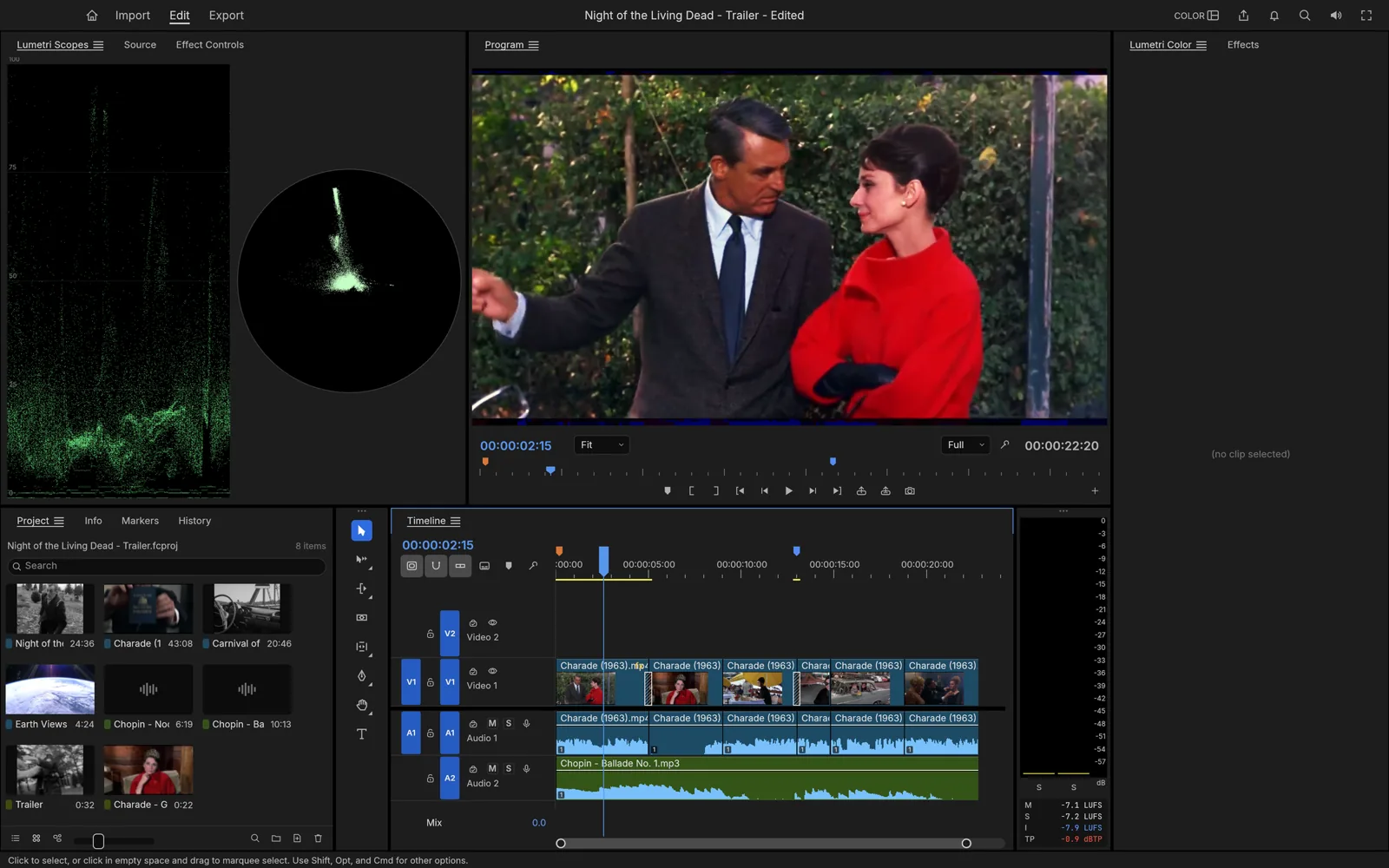
Use the same source footage and a comparable correction when evaluating a
color workflow. This is FilmCraft's interface, not a side-by-side benchmark.
Test interchange before promising it
An interchange format is not the same as a native project. Even when both applications read a timeline format, titles, effects, retiming, and color processing may translate differently. If your workflow starts in one editor and finishes in another, export a representative interchange file and compare the imported sequence against a reference render.
Keep original media paths organized and include the information the recipient needs. If a particular effect cannot transfer, agree on whether it should be rebuilt or rendered into a separate intermediate. Do not delete the source project after producing a flattened export; the recipient may request a revision that requires editable elements.
4. Choose based on the verified job
Choose FilmCraft when its current capabilities meet your tested workflow and its open-source approach is useful to you. Keep backups and account for its early-stage limitations. Choose Resolve when its specific finishing tools, supported integrations, or the receiving team's workflow are decisive for the project. Confirm free-versus-Studio requirements before relying on a feature.