FilmCraft Multicam Editing: Synchronize Cameras Using Audio
Prepare camera scratch tracks, create a multicamera source, verify waveform alignment, and cut angles while keeping the intended audio continuous.
Filmcraft · Updated
Loading guide…
Multicamera editing has two separate jobs: align recordings of the same event, then choose which camera the viewer sees. Audio synchronization helps with the first job when each camera recorded a useful scratch track. It does not remove the need to inspect the result, and it cannot match recordings that contain no usable common sound.
FilmCraft v0.20.1 provides a Create Multi-Camera Source Sequence dialog with In Points, Out Points, Timecode, Clip Marker, and Audio synchronization choices. Use a duplicate project while learning the workflow, particularly when a long recording or external sound recorder is involved.
Prepare media with a common reference
Import the camera clips and identify which recordings overlap. Give the sources recognizable names before combining them. Listen to the scratch audio on each camera: a clap, a spoken phrase, or another distinct transient makes an excellent manual check after automatic alignment.
If one camera has no usable sound, mark a shared visual event or use reliable production timecode instead. Repeated music, silence, distant echoes, and unrelated recordings can make an audio match ambiguous. Do not interpret a completed operation as proof that the correct event was found.
Decide which audio should remain in the final edit. Camera scratch tracks can be useful for synchronization while being unsuitable for the finished mix. Keep a note of the intended dialogue source so switching video angles does not accidentally switch the listener between different microphones.
2. Create the multicamera source
Select the relevant media in the Project panel and invoke Create Multi-Camera Source Sequence…. Give the source a useful name and choose Audio as the Synchronize Point when all selected clips share usable sound. Review the audio behavior before confirming.
Audio choice
Editing consequence to consider
Camera 1
Uses the first camera's audio as the reference output; verify that it is
the source you want to hear.
All Cameras
Keeps camera audio available together; listen for doubled sound and
decide which sources belong in the mix.
Switch Audio
Audio follows angle switching; useful only when those microphone changes
are intentional.
Place the resulting multicamera source into your editing sequence. Keep the original source items organized in the Project panel; deleting or relocating their media does not simplify the underlying dependency.
Check the alignment at more than one point
Listen around a distinct transient and compare the camera images with the sound. A visible hand clap or consonant can reveal a mismatch that is hard to notice in a wide shot. Then check a later shared event. If the beginning aligns but the end does not, you may be dealing with recording drift or a time-base problem rather than one fixed offset.
For a failed automatic match, return to a copy and use a clearly marked common event with the appropriate marker or In Point synchronization method. Correct source issues before committing to a long angle edit. A proxy should also match the source's time base; see the proxy workflow if playback becomes difficult.
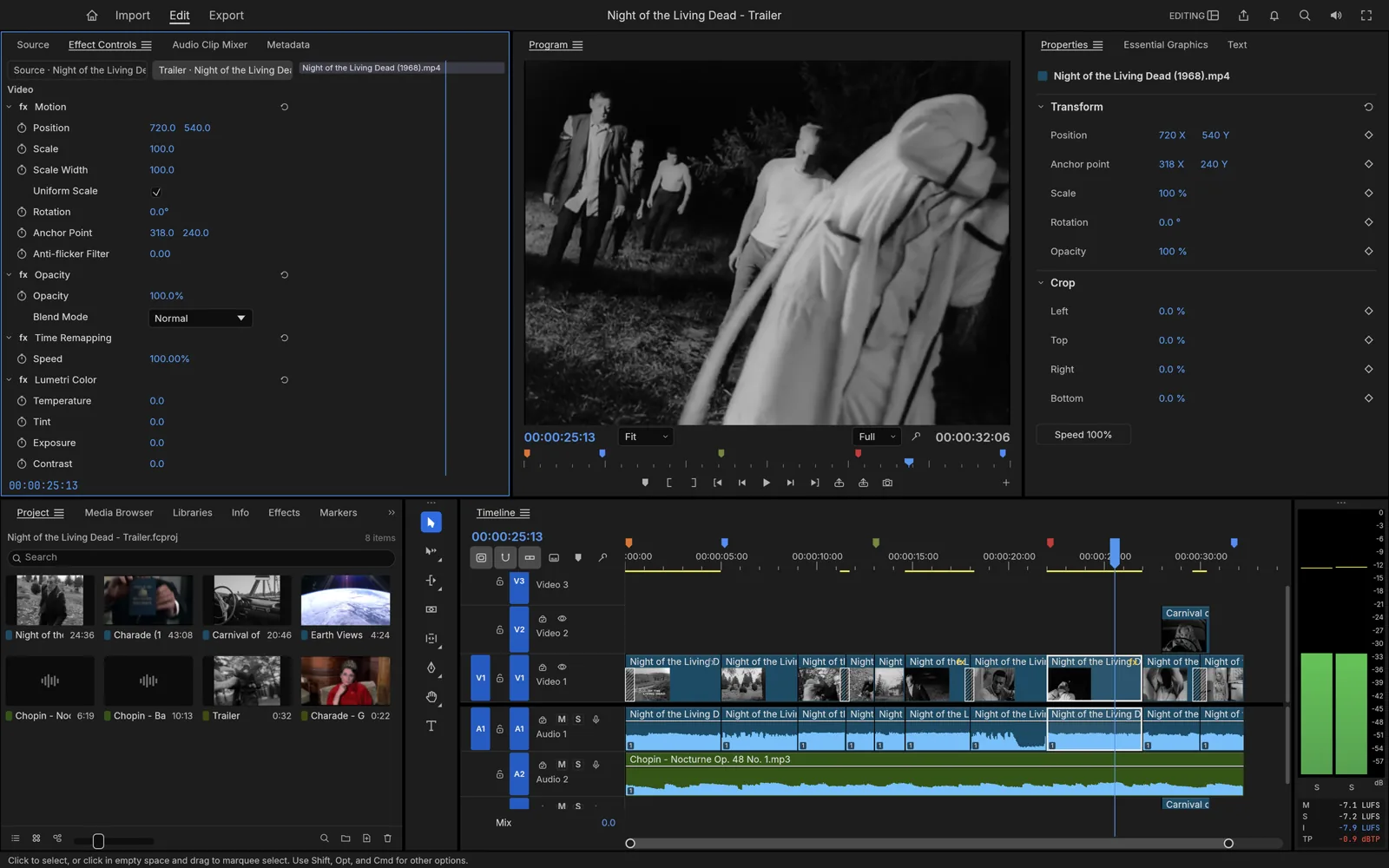
Use the timeline and recognizable events to verify synchronization before
cutting camera angles. This image shows the general editing workspace.
Switch pictures while monitoring the sound
Enable View → Multi-Camera View. FilmCraft's documented monitor behavior distinguishes switching an angle from recording a cut: clicking an angle while playing with Multi-Camera Record enabled creates angle cuts. With recording disabled, a click selects an angle without the same recording behavior. Verify the active mode before beginning a pass.
After the pass, play across every cut and listen on headphones. If dialogue changes tone or doubles, review the multicamera audio choice and active sources. Refine cut points on the timeline, then export a sample containing several angle changes. The audio cleanup guide covers gain, noise, and channel checks for the chosen sound source.